
Live translated captions over your slides
The Event Translate desktop app for Mac puts live translated captions over your PowerPoint or Keynote slides on the projector, and can send translated audio to attendees' phones, all from the presenter's laptop.
Download for MacFree · macOS 13 or later · Apple silicon and Intel Macs
No Mac at the venue?
Install in three steps
Open Event-Translate.dmg in your Downloads folder.
Drag Event Translate into Applications.
Open it from Applications. macOS asks once whether to open an app from the internet: click Open.
Then click Sign in and sign in to your Event Translate account in the browser that opens. The app then shows today's event.
Setting up the projector laptop for someone else's event? Skip sign-in and paste the captions link the event owner sends you.
Run the event from one window
Pick today's event. Its languages come with it.
Choose the screen that shows captions.
Tick the languages that appear on it.
Press Go Live. Captions appear on that screen.
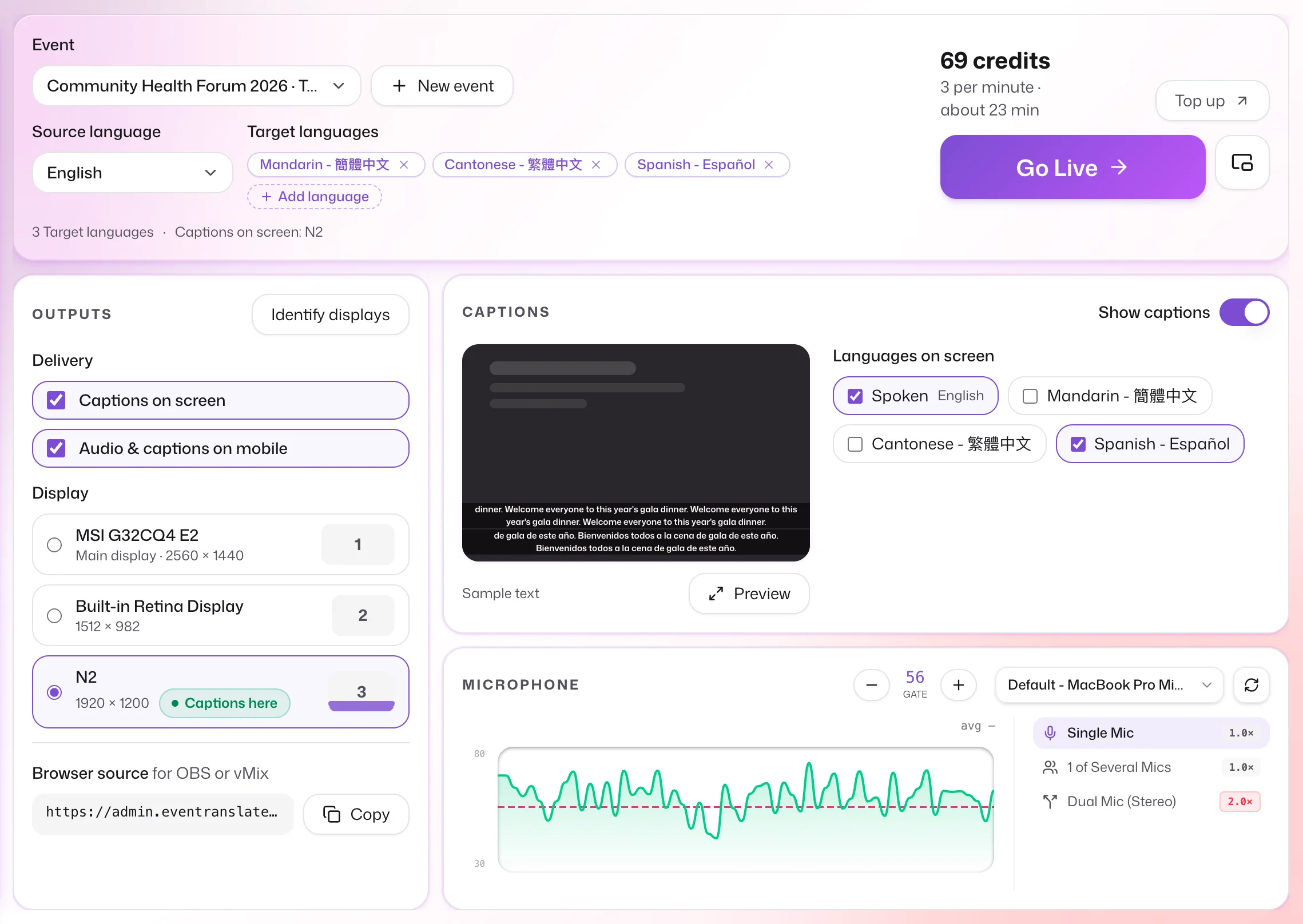
Easy to set up, out of the way once you're live
Drag captions into place
The preview shows what's on the screen right now. Drag each language's caption band where your audience can see it, then drag its edge to make the text bigger or smaller.
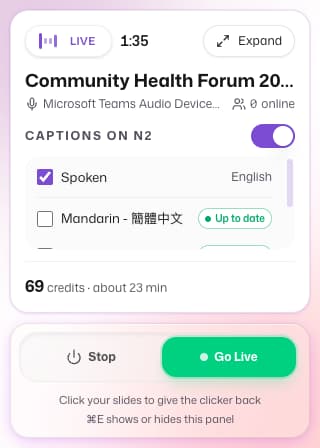
A small panel while you're live
The Dashboard shrinks to a panel over your slides, with the time live, a captions switch and your credits left. A click on your slides hands the clicker back.
One shortcut hides or shows the app mid-talk, without taking the keyboard from your slides. Set your own keys in Settings.
Desktop app questions
Will an update pop up during my event?
No. The app downloads updates in the background and asks to restart only when you're not live and no captions are showing. Choose Later and it updates the next time you quit.
Does it work with PowerPoint and Keynote?
Yes. The captions sit in a band on top of whatever the projector shows, including a full-screen PowerPoint or Keynote show. Clicks pass through the band, so your clicker keeps turning slides.
Do I need a mixer or other equipment?
No. In a small room, the Mac's own microphone is enough. In a hall, connect the mixer or an audio interface to the Mac and pick the channel whose level moves: no re-routing and no extra software.
Can attendees listen on their phones as well?
Yes. With Audio & captions on mobile ticked, attendees scan a QR code to hear the translation and read captions on their own phones, with no app to install. Running both costs the same as running one.
How much does the desktop app cost?
The app itself costs nothing. Going live uses your Event Translate credits at the same rate as the browser version.
Is there a Windows version?
Not yet. A Windows version is planned. Until then, on a Windows laptop, open your captions link full screen in a browser, or load it in OBS or ProPresenter.
No Mac at the venue?
Open your captions link full screen in any browser, or load it in OBS or ProPresenter.